
Features
From the command station to the hand throttle: what stellwrk can do and how operation feels.
Block plan: your layout at a glance
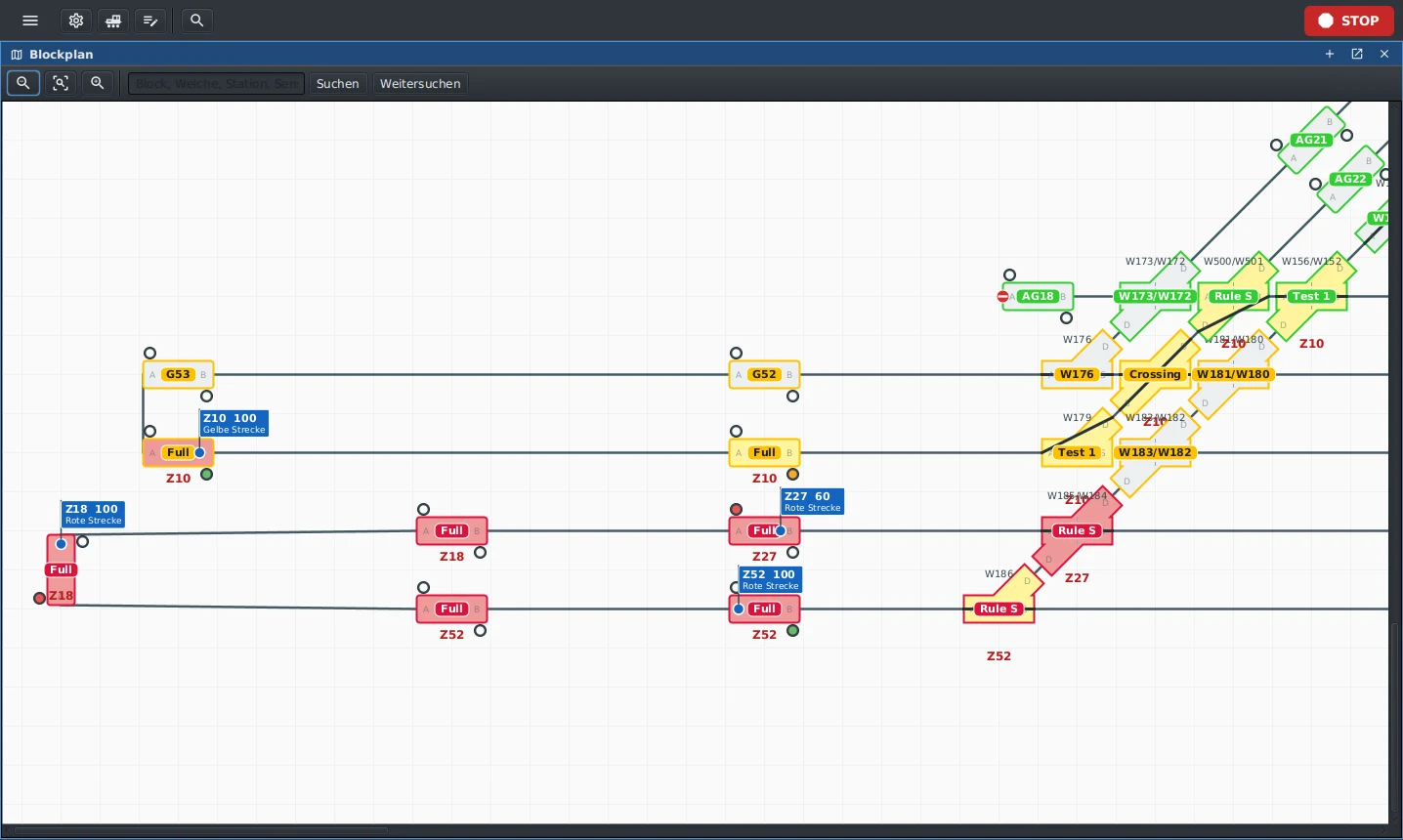
The block plan shows tracks, blocks, turnouts, signals and trains. Whatever happens on the layout, you see it here first.
- Colours show the state: free, reserved, occupied, blocked or faulty.
- Set turnouts and signals with one click.
- Search finds blocks, turnouts and stations; zoom and several block plans help on large layouts.
Trains run on assignments
You say where a train should go and how it behaves. stellwrk takes care of the route.
- Blocks are reserved ahead, before the train reaches them.
- Turnout rules decide per turnout and assignment whether to go straight, diverge or follow a preferred direction; also for three-way turnouts and turntables.
- Even while a train is rolling you can still throw turnouts, as long as the new direction is free and there is time to set them safely.
- Dwell times are set per train category, and you define the assignments yourself.
Dispatcher list: tasks instead of constant watching
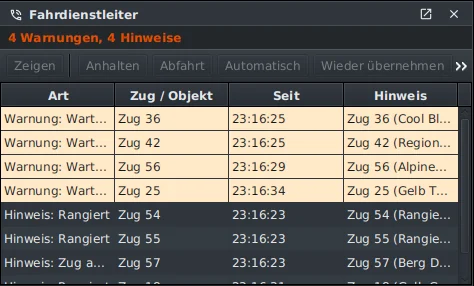
The dispatcher list shows what needs your attention. A train appears at most once, with its most urgent reason.
- Waiting trains, faults and notes appear by themselves and disappear when the reason is gone.
- Show, hold, depart, automatic and take over again are one click away.
- An optional sound draws your attention to new entries.
Engineer cab and hand throttle
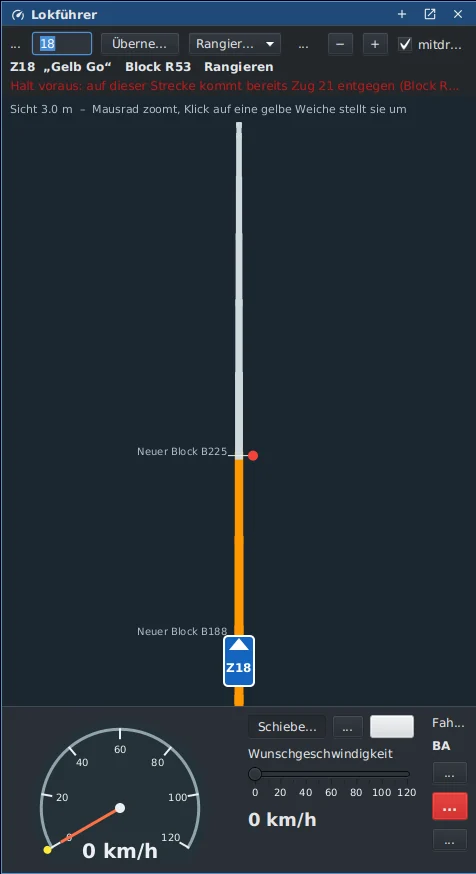
If you want to drive yourself, open the cab: forward view, speedometer and throttle. The view rotates with the track.
- Turnouts marked yellow can be thrown with a click.
- Open several cabs at once in their own panels.
- The Android app “stellwrk Lokführer” turns your phone into a throttle: PIN login, assigned locos only, and the server slows a loco down if the connection drops.
Train list, operating modes and STOP
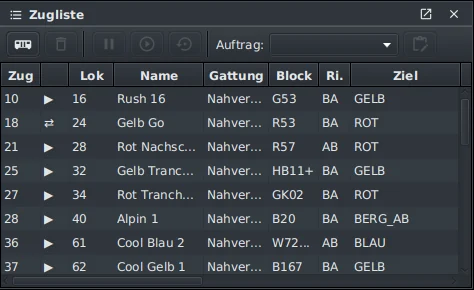
You put trains on the track by their DCC address. The train list shows state, block, destination and the latest message.
- Operating modes: automatic, held, or shunting by hand.
- Give the selected train an assignment with one click.
- STOP (F12) is always visible at the top right and halts all trains at once.
Command stations and hardware
stellwrk talks to the common digital command stations, and you need none to get started.
- Roco Z21 over LAN, Lenz via XpressNet over USB or LAN, LocoNet (Digitrax, Uhlenbrock Intellibox and others) over USB or LoconetOverTcp. ESU ECoS is in preparation.
- Several command stations per layout; for example one drives while the other sets turnouts.
- The simulation runs without hardware, with time lapse up to 4x.
- Turnout feedback and point sensors (reed contacts) for exact stops; a tolerant mode serves simple layouts without occupancy feedback.
Loco database and speed factor
Measure your locos once, and every train runs at the scale speed you ask for.
- For each DCC address the loco database holds measured points “km/h = speed step”, plus loco length and magnet position for point sensors.
- The speed factor in percent acts live on all trains: lower for realistic operation, higher for the arcade feel.
- Scales N, H0, gauge 1 and LGB set the defaults for new track.
Editor for track plan and diagram
The server contains the editor for the block plan and the track diagram.
- Straights, turnouts, crossings, double slip switches, three-way turnouts and turntables.
- Check and commit: errors in the draft are reported before you commit.
- The track diagram draws the layout as a clear schematic plan.
Operation, appearance and help
Almost everything works without a mouse. The interface adapts to your workplace.
- The command palette (Ctrl+K) finds every command, block and train; function keys show and hide the panels.
- Light or dark, font size, spacing and window arrangement belong to profiles that live centrally in the layout folder.
- F1 opens the manual at the matching chapter; an AI assistant answers questions strictly from the manual.
Server and fat clients
Only the server drives the layout. Any number of fat clients show the same layout over the network and serve day-to-day operation.
- The server holds reservations, turnouts and the connection to the command station.
- Fat clients operate from further computers, for example at the dispatcher desk.
- Built with Java 21 and JavaFX.
Curious?
In the demo you can set turnouts yourself.